Guide
How to make an app promo video with device mockups
A five-step guide: turn app screenshots into an animated iPhone or Mac mockup video with text and music, and export MP4, WebM or GIF, free in your browser.
Step 1
Add your screenshot
Paste it (⌘V), drop it on the canvas, or click the empty screen. Images and screen recordings both work: PNG, JPG, WebP, HEIC, MP4, WebM and MOV.
Step 2
Pick a device
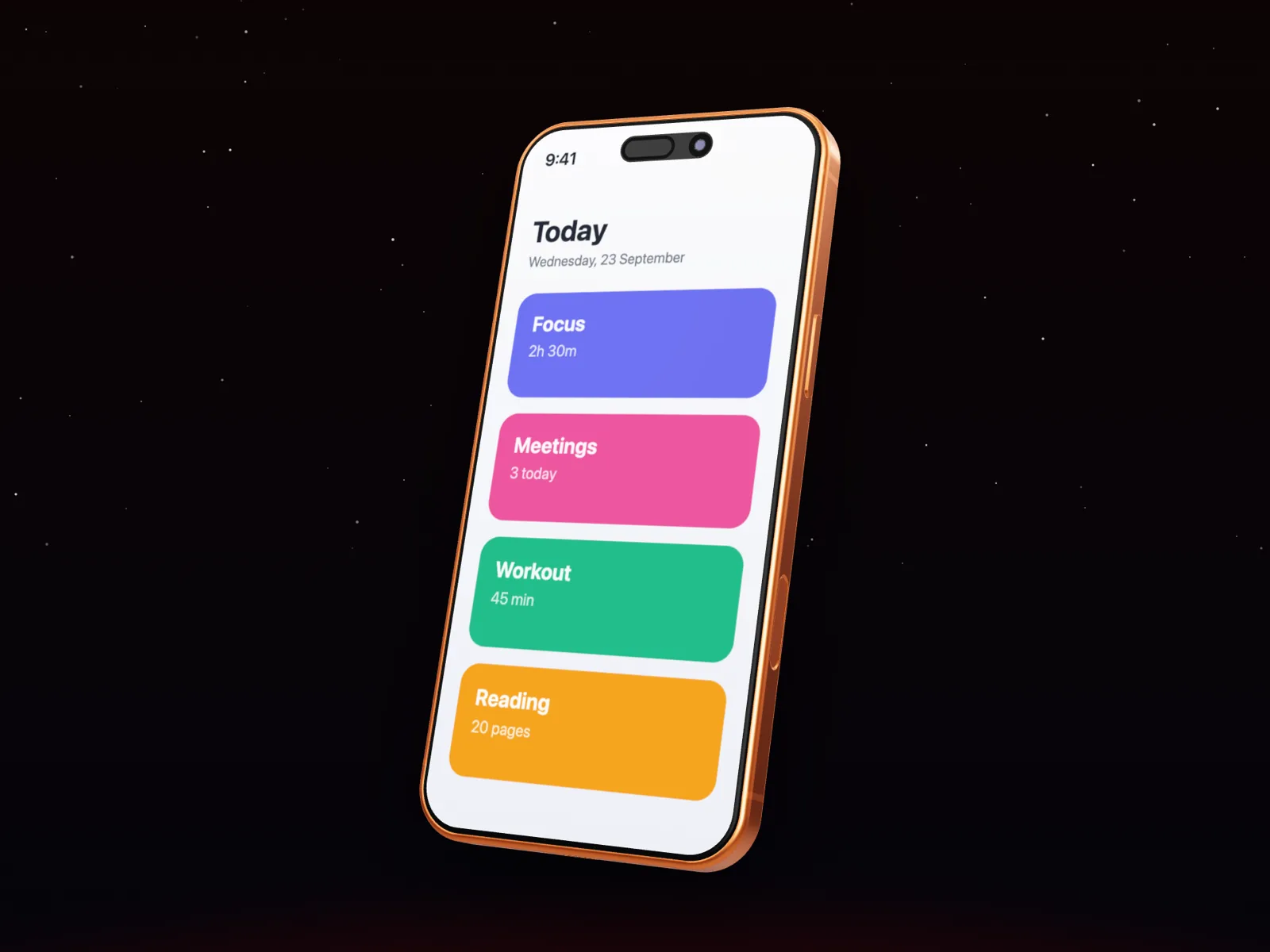
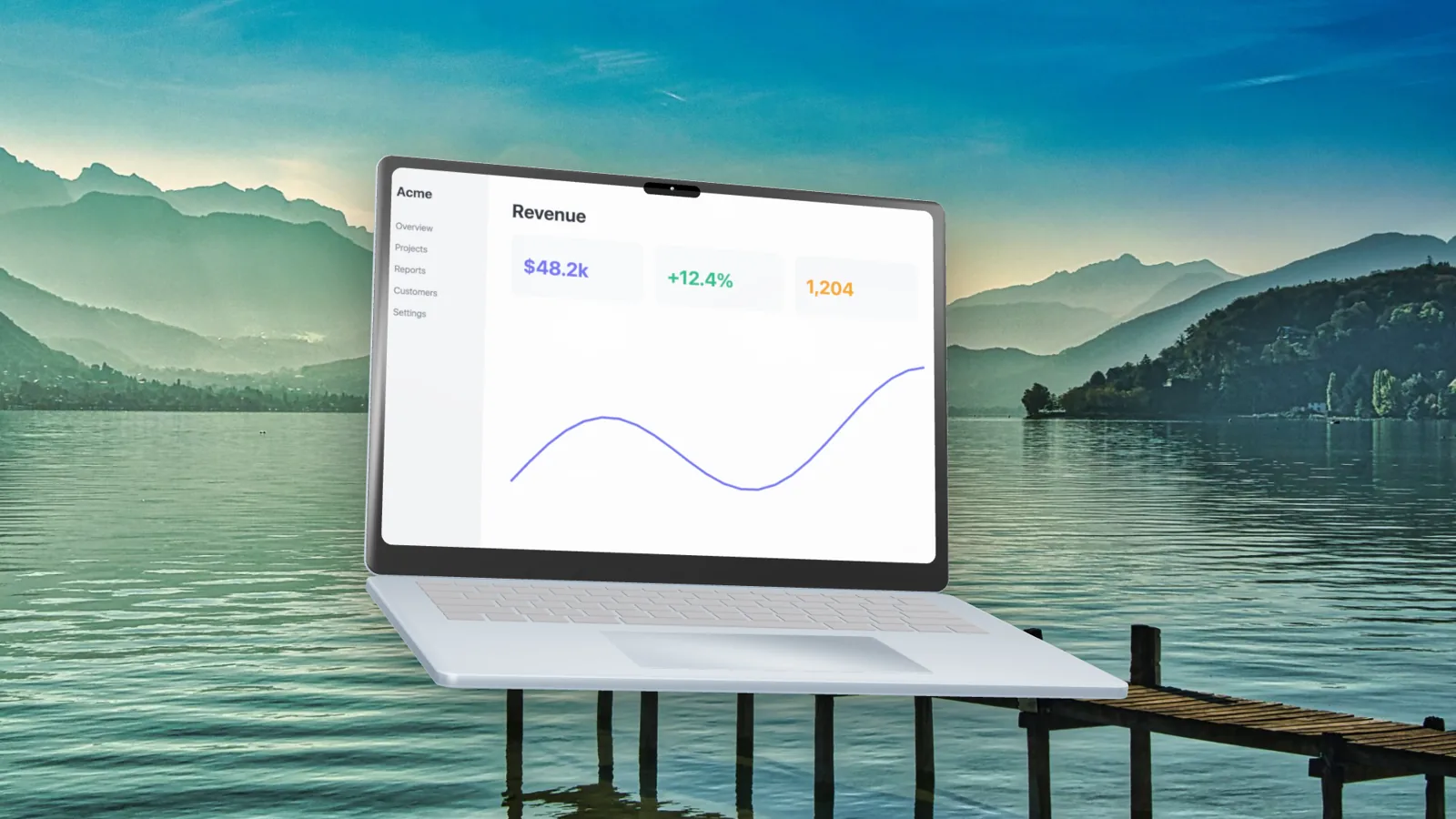
Choose an iPhone, iPad, Mac, Watch, browser window or a plain screenshot frame, and a finish. Switch to 3D for real depth and angles.
Step 3
Style the scene
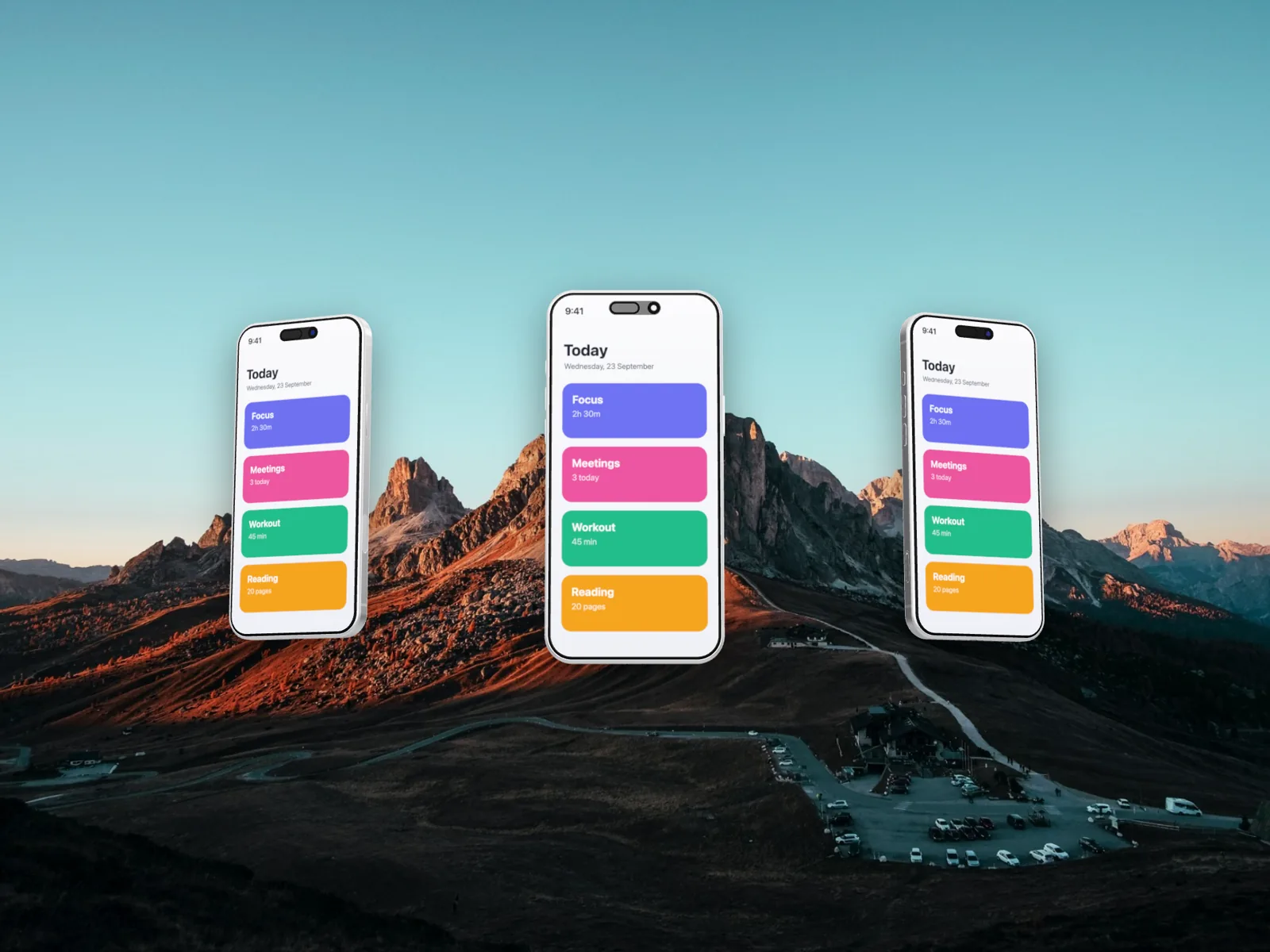
Pick a layout and background, or start from a template. Add a shadow, a watermark or effects.
Step 4
Animate it
Open the timeline, add camera moves, add more screens with the Screen button, write a headline in the Text tab, and add music.
Step 5
Export
Export an image, or a video as MP4, WebM or GIF. Press ⌘S at any time.
Tips for a better promo
- Keep it under 15 seconds for social; one idea per screen.
- Use a vertical 9:16 frame (Frame tab) for Reels, TikTok and Stories.
- Seamless-loop templates end where they start, so they make clean GIFs for a landing page.
- Export MP4 for social and WebM for your own site, where smaller files load faster.